View All Analytics Pipelines
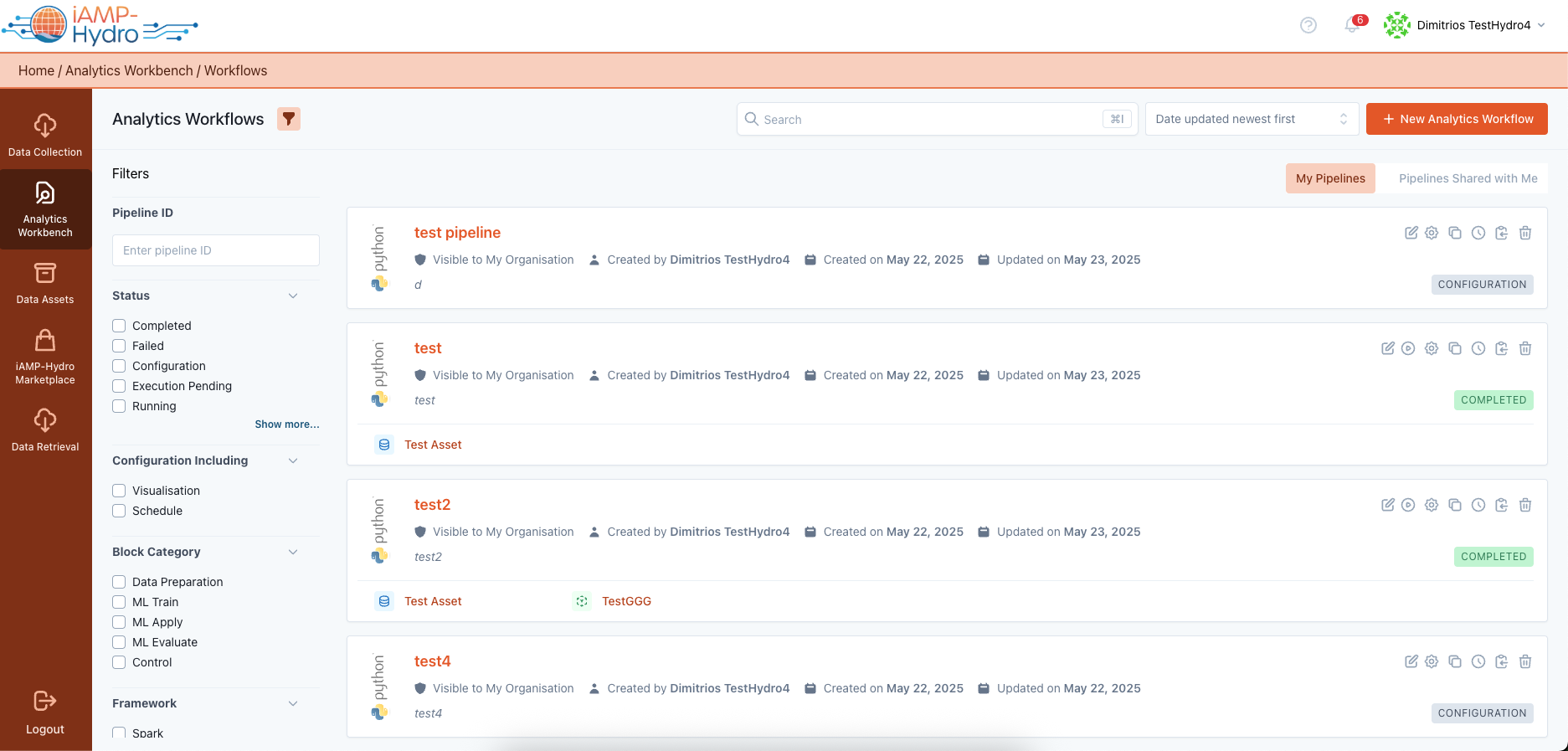
You may view and navigate to all your analytics pipelines (through the “My Pipelines” option) or the data analytics pipelines of your organization to which you have access (through the “Pipelines Shared with Me” option). As illustrated in the figure below, the details, including the user (within the organization) who created the analytics pipeline, its creation date, its last update date, its status, and the available actions for each analytics pipeline are presented.
Through the search bar, you are able to find a specific analytics pipeline based on a generic search or a targeted search to its title or description. You can also utilise the available sorting options which are based on name, creation date, execution date, and latest execution status, as pipelines may undergo multiple executions according to a schedule. In addition, filtering by the current status of each pipeline is available.
You are able to create a new data analytics pipeline or monitor the execution of your data analytics pipelines using the respective buttons located in the top right corner of the page.
Hints
The available actions for a data analytics pipeline are: Edit its name and description, Execute it (assuming it has been already finalized), Update its configuration, Clone its configuration to a new pipeline, Copy the pipeline id, Delete the pipeline.
- The potential status of each analytics pipeline is:
- Configuration (indicating that the design of the pipeline is in progress and it has not been finalized yet),
- Completed (indicating that the pipeline has been successfully executed),
- Failed (indicating that the pipeline execution failed),
- Execution Pending (indicating that the pipeline execution is planned for a future/imminent datetime),
- Running (indicating that the pipeline execution is currently ongoing),
- Suspended (indicating that the pipeline execution is suspended, typically because its output assets have been deleted),
- Queued (indicating that the pipeline has been queued for execution and once the necessary resources are available, it will be executed),
- Update (indicating that the pipeline needs to be updated, e.g. it is in the configuration status, but updates have been performed in some of its tasks and it needs to be upgraded to the latest execution version),
- Cancelled (indicating that a specific pipeline execution has been cancelled, e.g. by the user or because there is another parallel execution)
When selecting a specific analytics pipeline from the list (by clicking on its title), you will be directed to the Analytics Workbench environment to configure the analytics pipeline.