Execute an Analytics Pipeline
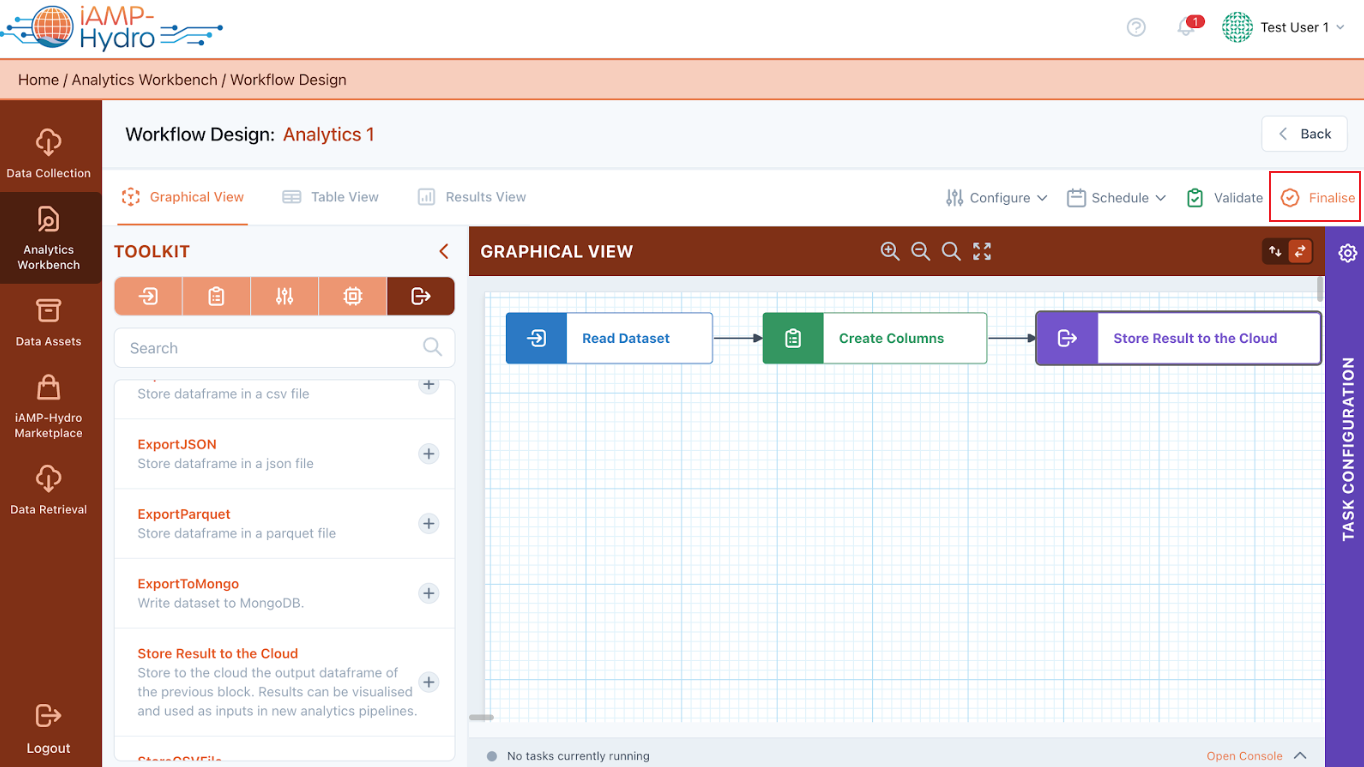
Upon concluding the configuration of a data analytics pipeline following the steps outlined in the Configure an Analytics Pipeline section, you need to confirm that your pipeline is valid. In case any errors appear, you are able to immediately view them and correct them, otherwise you are ready to finalize the setup by clicking the Finalize button located at the top right corner of the Analytics Workbench environment, as illustrated in the figure below.
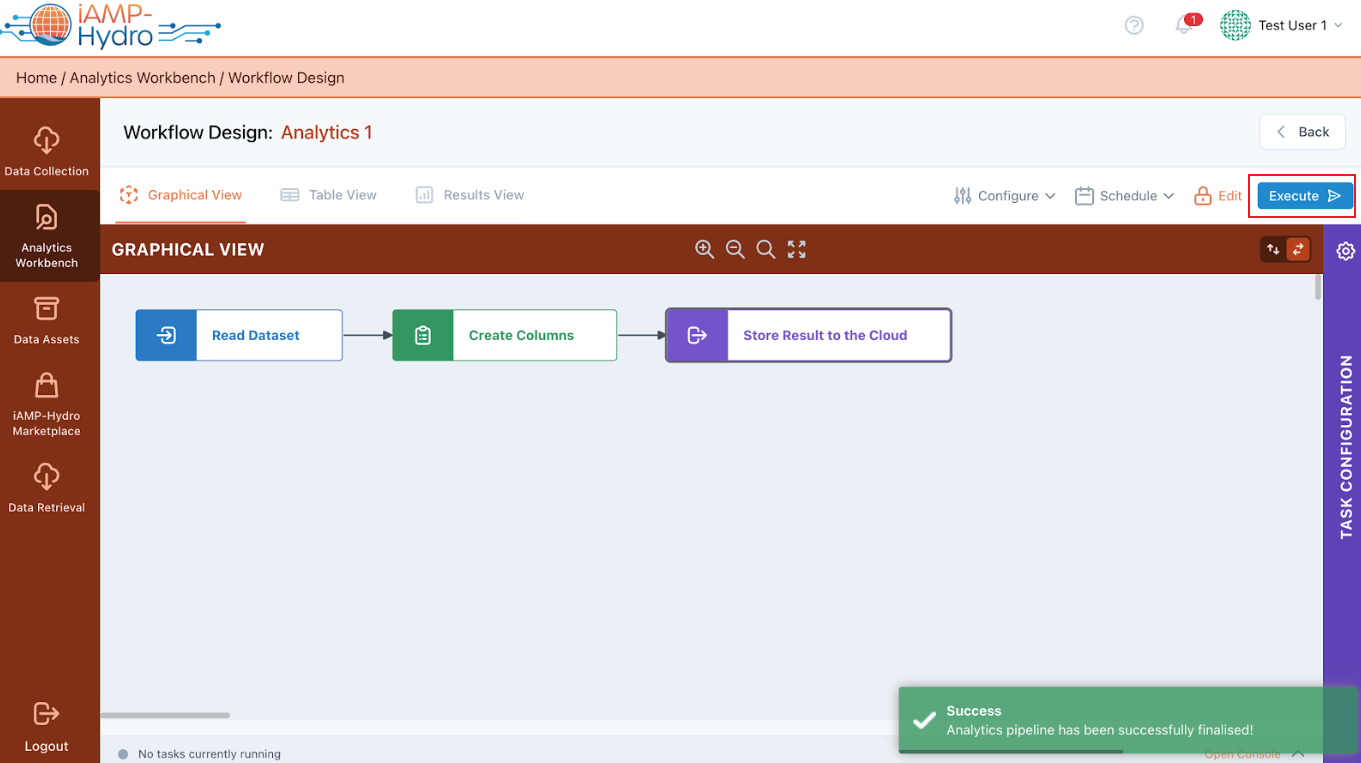
In addition to the various options for scheduling the execution of a data analytics pipeline, the execution of a pipeline can be also manually initiated by a user by clicking the Execute button at the top right corner of a finalized analytics pipeline, as demonstrated in the figure below.
Hint
- You can set up the future pipeline execution as described in the Schedule a recurrent or future Execution/ Execution triggering upon event section.
Visualize the Results from an Analytics Pipeline
After finalizing and successfully executing an analytics pipeline, you can explore the results, as illustrated in the figure below. The presentation of results aligns with the visualization configuration set in the Results View page, detailed in the Configure a Visualization (Results View) section. Furthermore, you have the option to download the visualization locally or retrieve the results through a customized API endpoint, as outlined in the Create a Retrieval Query section.