View Data Collection Jobs
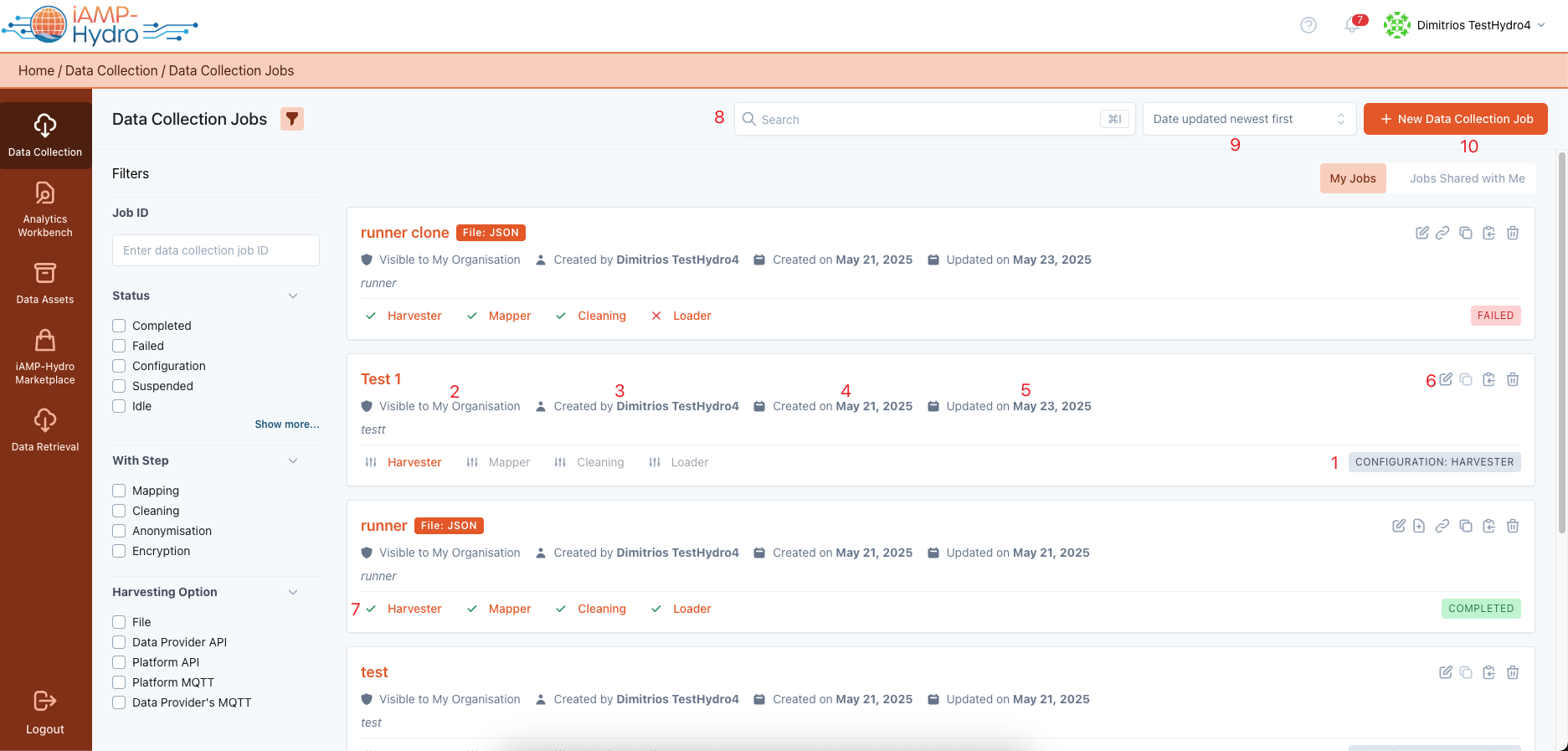
In the Data Collection tab, you will find a concise summary listing all the data collection jobs that have been created or configured by members of your organisation, as illustrated in the figure below. This list view offers comprehensive details about each data collection job, including its execution status (1), visibility levels (2), the creator of the job (3), its creation (4) and last update dates (5), and a set of actions (6) you can perform, such as:
- Editing a Data Collection Job
- Appending data to a Batch File data collection job
- Deleting a Data Collection Job
- Navigating to the resulting Asset of the Data Collection Job
- Cloning the Data Collection Job
- Copying the Job ID to the clipboard
Specifically, after a data Data Collection Job has been executed, icons such as a tick mark, a cross mark, or an exclamation mark, (7) will be displayed next to each data collection step (Harvester, Mapping, Cleaning). These icons indicate whether the execution of that particular step was successful, encountered an error, or needs to be updated due to incorrect configuration, depending on the steps applicable to the given pipeline. If a Data Collection Job has not been executed and is queued for execution, a clock icon will be displayed to indicate its status as pending execution.
You may look for specific Data Collection Job using the search bar (8) and can organise your view by sorting (9) according to the Data Collection Job title, its execution status, the date it was created, or when it was last updated. Furthermore, you can initiate the creation of a new Data Collection Job for uploading new data to the iAM Platform via a dedicated button located in the top right corner of the page (10).