Create a Retrieval Query
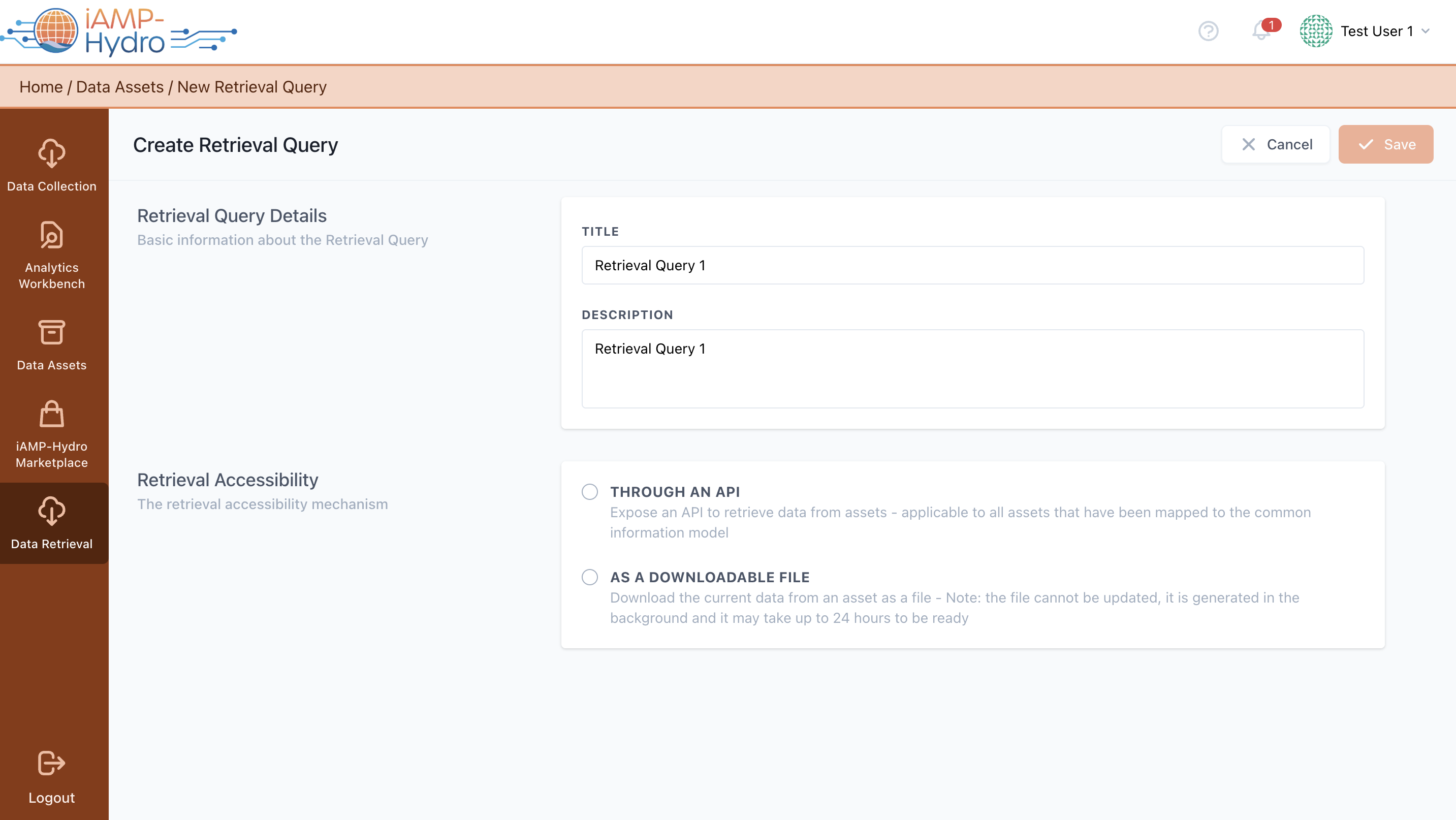
Initiate the creation of a new Retrieval Query by defining its title, description, and acquisition method for datasets and results (either belonging to your organisation or acquired by it), as illustrated in the figure below.
Hint
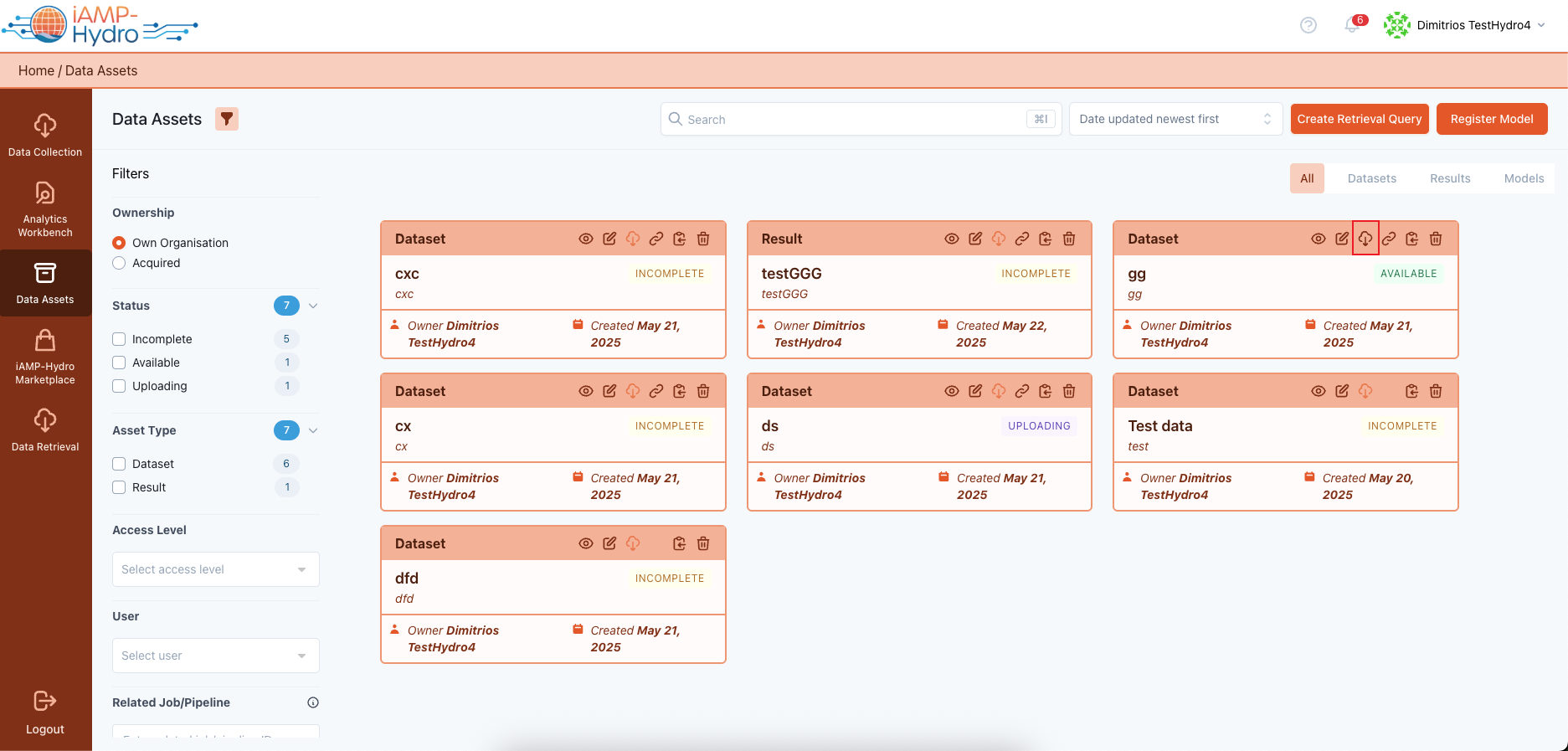
To create a new Retrieval Query for a specific data asset, you may navigate to the specific Data Asset (dataset/result) and utilise the dedicated Retrieve Button located at.
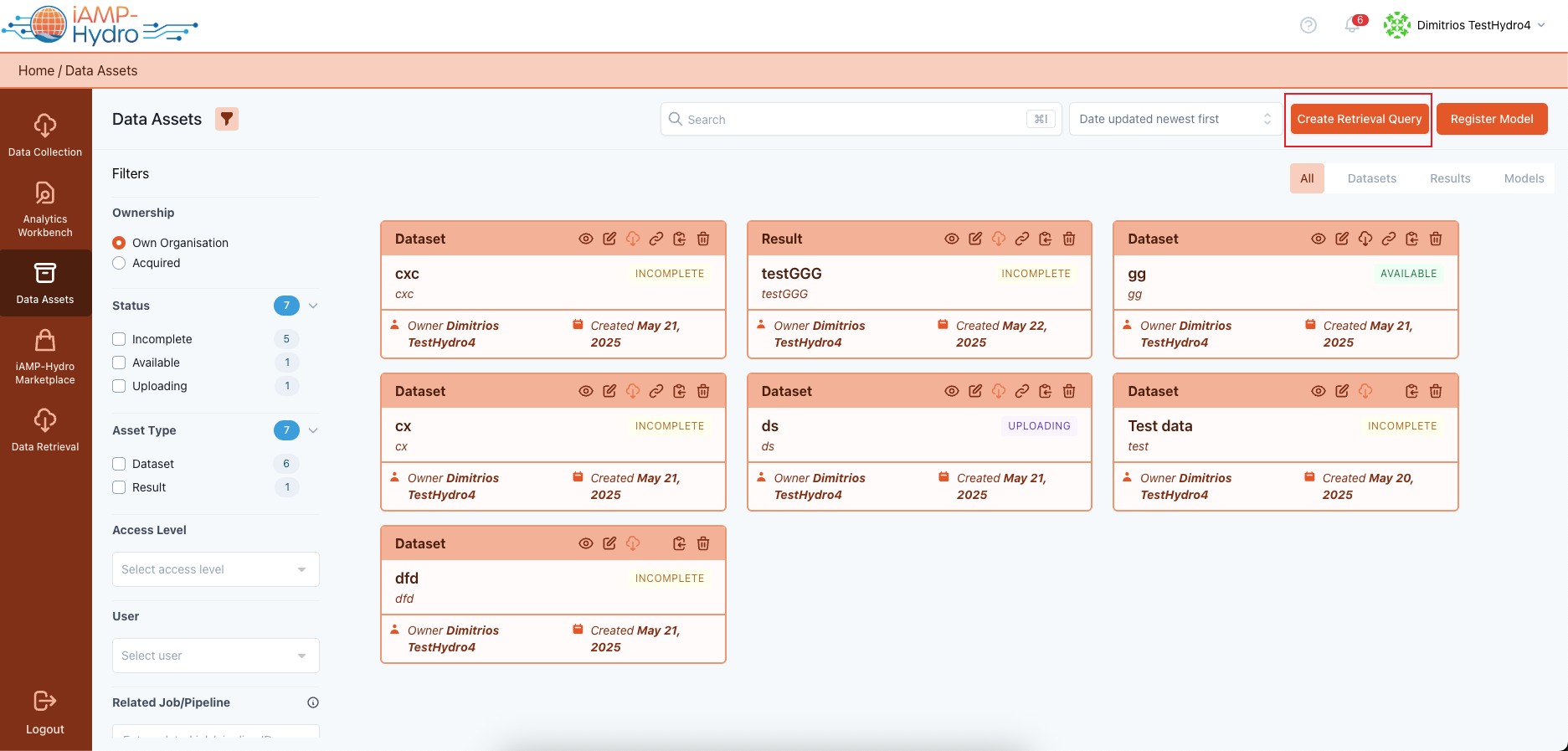
Also, you may create a Retrieval Query through the create button in the main Retrieval menu.
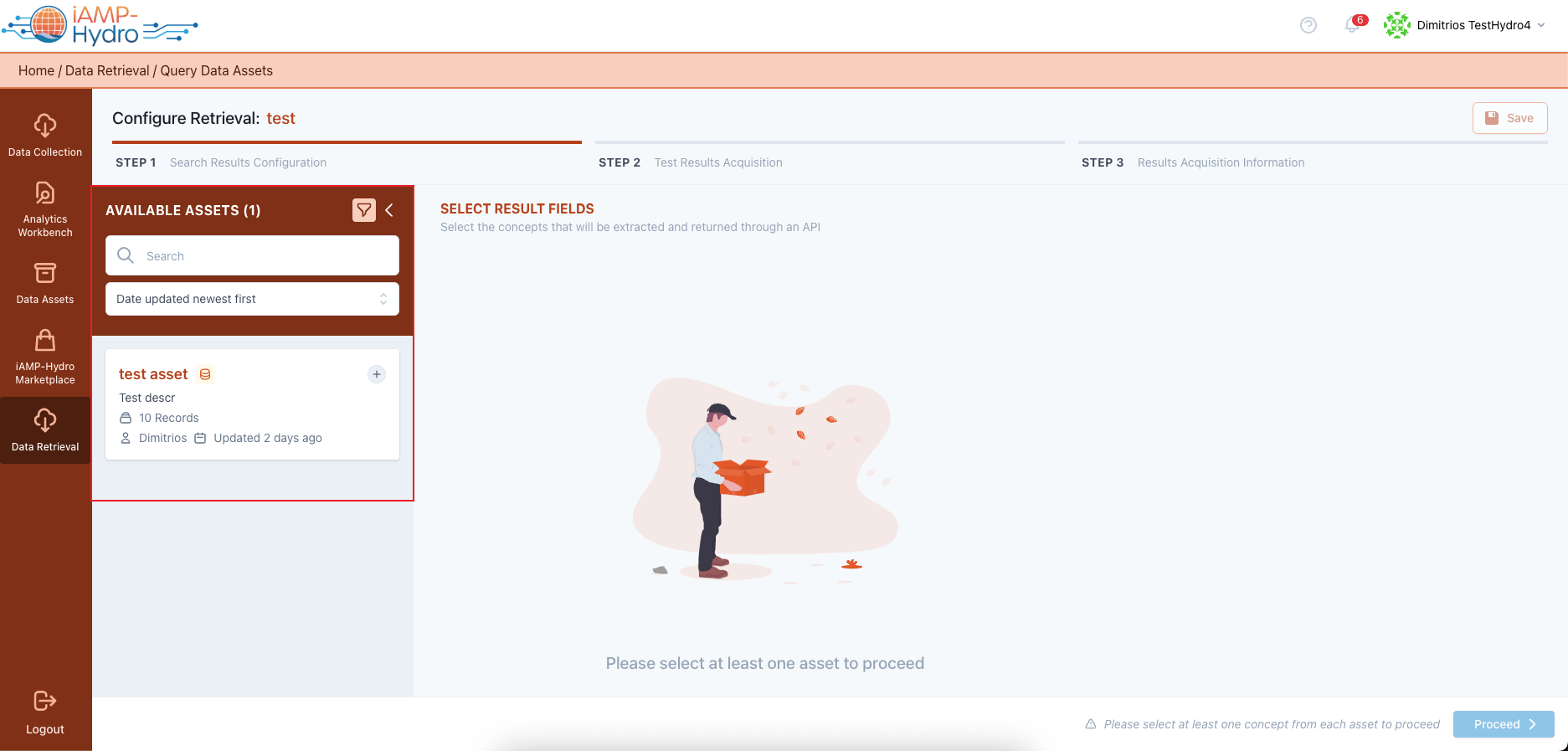
In order to facilitate the selection of the assets to be part of the retrieval query, search and sort functionalities are supported as follows:
- Search by: asset name and/or description
- Sort by the creation/update date of the asset, asset status and title
API-based Retrieval Queries
Next, you’ll need to select the fields from the chosen data assets to be extracted and expected as the results of the retrieval query. Additionally, you should define the fields to be used as query parameters to filter the results, with various options available depending on the data type of the selected field.
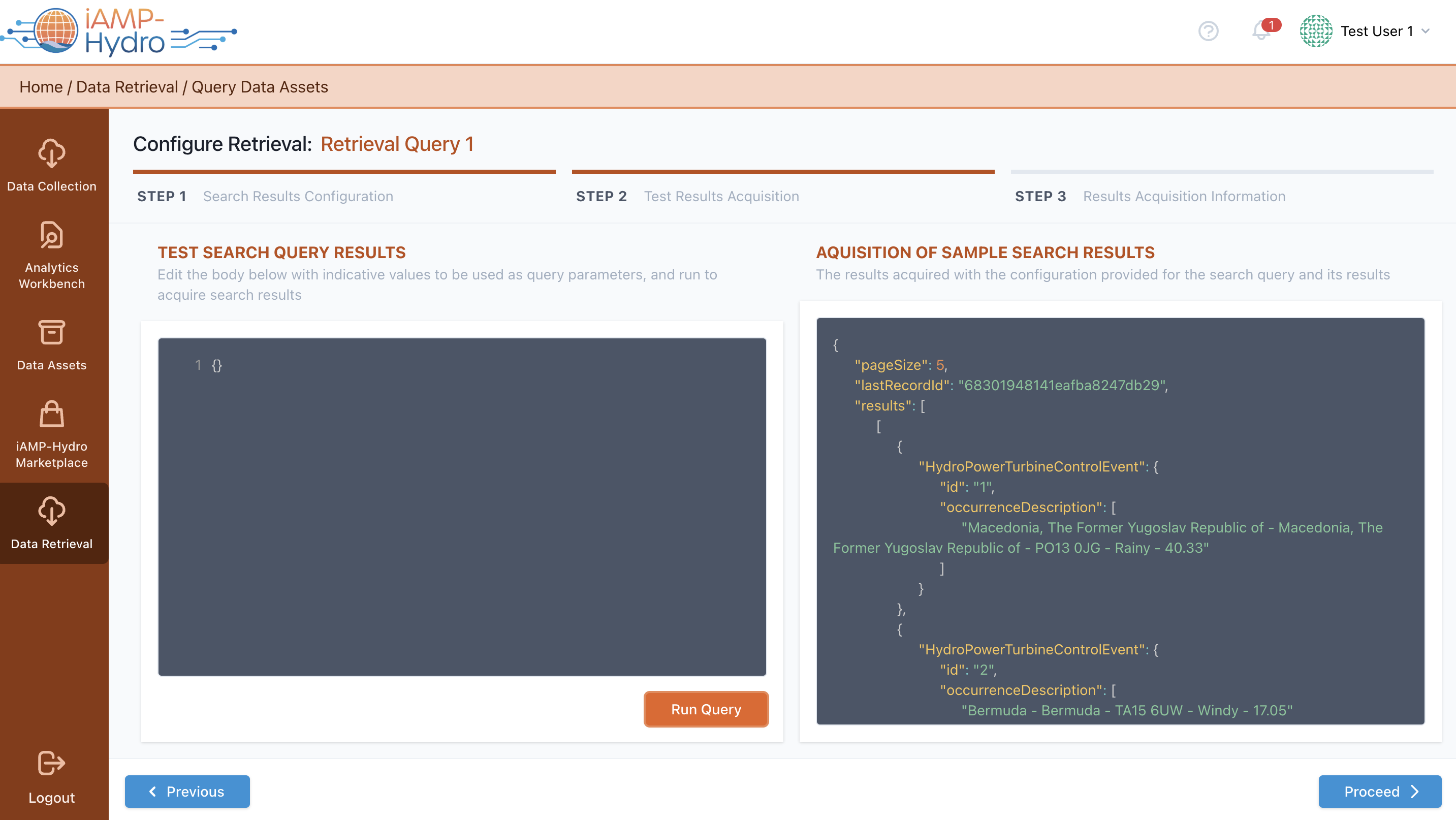
Following that, as depicted in the figure below, on the left side of the page, you will edit the body of the query with indicative values for the fields to be used as query parameters for appropriate dataset filtering. On the right side, a sample preview of the result is displayed after selecting "Run Query" to obtain a sample of the query results.
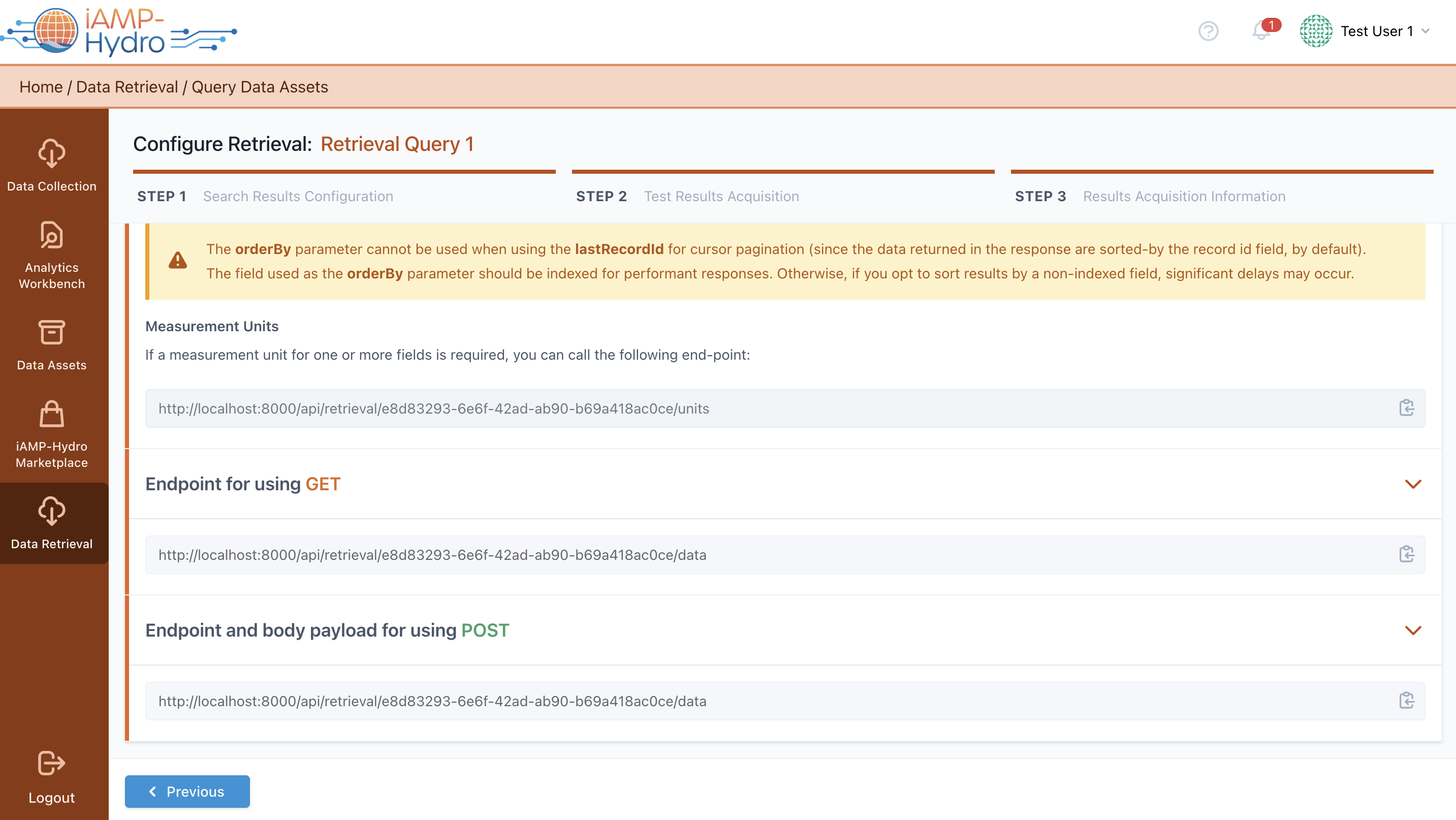
The final step of the retrieval configuration provides you with detailed guidelines about how to get the retrieval results through the iAM Platform’s APIs, as shown in the figure below. Instructions regarding authentication, pagination, and sorting of results are provided, along with endpoints for GET and POST methods containing the full API paths, including the base URL and different path segments for the query, and the query body for the POST method.
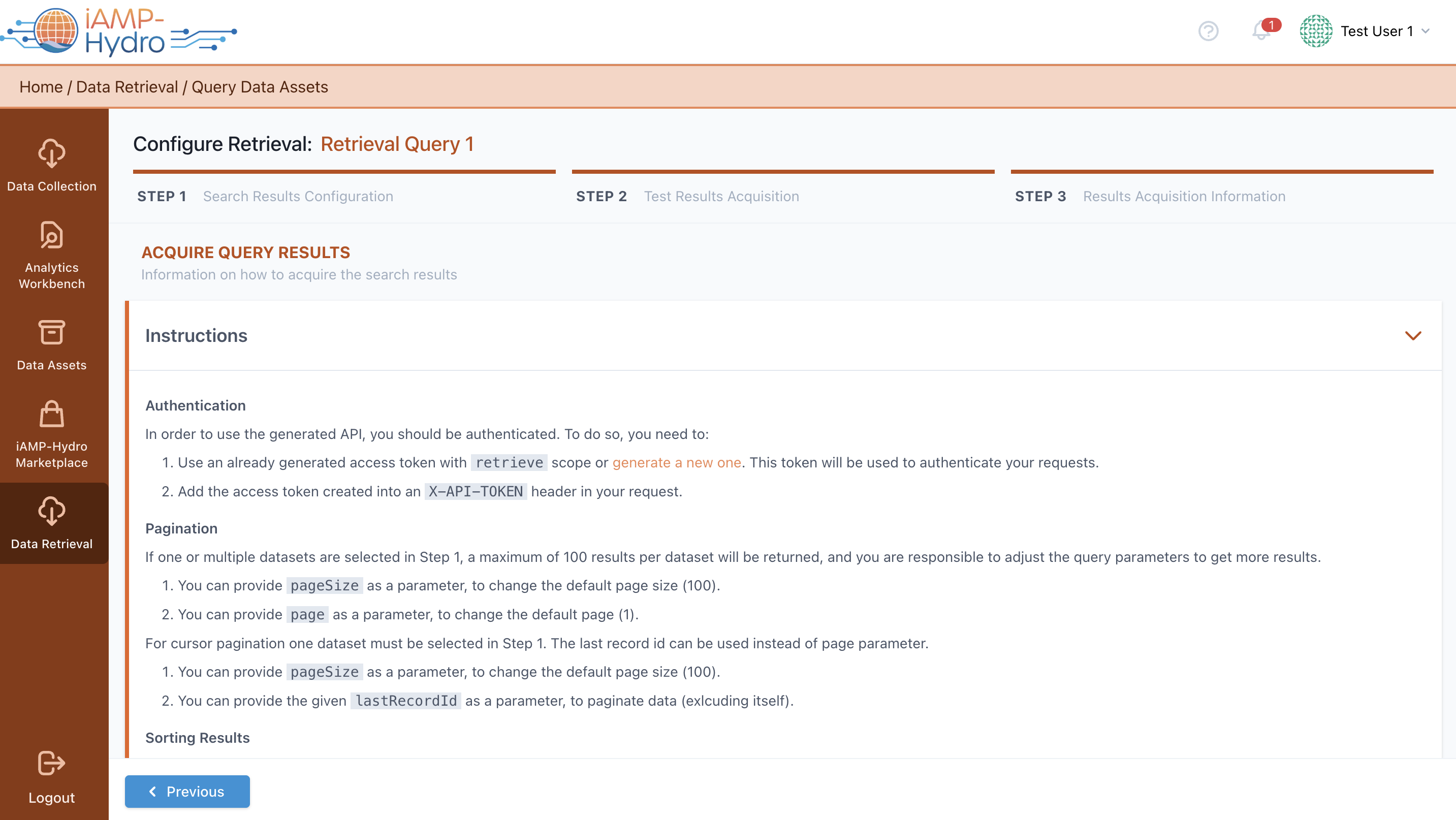
The platform mandates authentication for users requesting data retrieval from an API and receiving associated query results. This involves adding an already generated retrieval access token into an appropriate header of the request. If you don't have a token, you can generate one by selecting the "generate a new one" link and following the provided procedure to add it to the request header. Various options for sorting and paginating results are available. To sort results in a specific order, you may provide sorting query parameters (e.g., orderBy specifying the full path of the field to be ordered by, and orderDirection specifying the ordering direction - ASC for ascending and DESC for descending).
Furthermore, you can retrieve the related measurement units for fields included in the retrieval query through a customized endpoint.
Hints
- At any point, you can generate a retrieval token by following the instructions provided in the Generate Access Tokens section.
- If any data assets in a retrieval query have been deprecated or their providers have revoked access, a relevant notification is provided via the iAM Platform and/or email.